WordPress has become one of the most popular platforms for building websites, thanks to its user-friendly interface and powerful features. If you’re new to WordPress, navigating the admin screen might seem daunting at first, but fear not! In this beginner’s guide, we’ll walk you through the various sections of the WordPress admin screen, helping you familiarize yourself with its layout and functionality.
Logging In
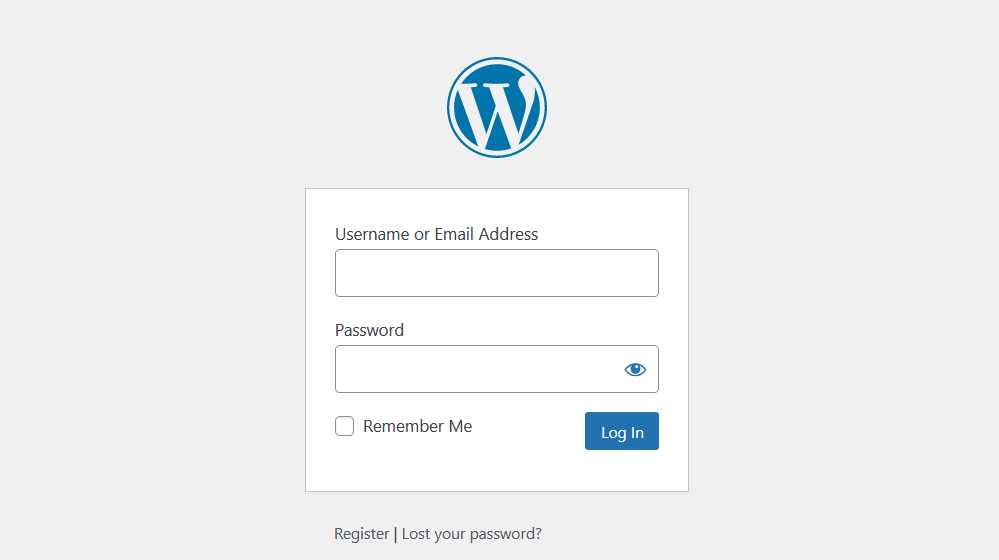
Before we dive into the admin screen, let’s start with logging in. Simply type “/wp-admin” at the end of your website’s URL (e.g., www.yourwebsite.com/wp-admin) and enter your username and password. Once logged in, you’ll be greeted by the WordPress dashboard—the central hub for managing your website.
The Dashboard
The dashboard is your control center, where you can access all the tools and features needed to manage your WordPress site. At a glance, you’ll see an overview of your site’s activity, including recent posts, comments, and updates. You can customize the dashboard to display the information most relevant to you by clicking on the “Screen Options” tab at the top-right corner.

Toolbar
At the top of the screen is the toolbar, which provides quick access to various admin functions and shortcuts. Here are some common toolbar items:

- Site Name: Clicking on your site’s name/logo will take you to the homepage.
- + New: Allows you to quickly create new posts, pages, or media items.
- Updates: Notifies you of available updates for WordPress core, themes, and plugins.
- Profile: Allows you to edit your user profile and account settings.
- Search: Lets you search for specific content or pages within your site.
Navigation Menu
On the left-hand side of the screen is the navigation menu, which provides access to various sections of your WordPress site. Here are some key menu items you’ll encounter:
- Dashboard: Returns you to the main dashboard screen.
- Posts: Allows you to create, edit, and manage blog posts.
- Media: Provides access to your media library, where you can upload and manage images, videos, and other files.
- Pages: Allows you to create and manage static pages on your website.
- Comments: Displays and manages comments left by visitors on your posts.
- Appearance: Lets you customize the appearance of your website using themes, widgets, and menus.
- Plugins: Allows you to install, activate, and manage plugins to add functionality to your site.
- Users: Lets you manage user accounts and permissions on your site.
- Settings: Provides access to general settings, including site title, URL, and privacy settings.
Screen Options and Help
At the top-right corner of most admin screens, you’ll find two dropdown menus: “Screen Options” and “Help.” The Screen Options menu allows you to customize the display settings for the current screen, such as hiding or showing certain sections or columns. The Help menu provides contextual help and support documentation related to the current screen or task.
Conclusion
Navigating the WordPress admin screen may seem overwhelming at first, but with a little practice, you’ll soon feel right at home. Remember to take your time exploring the various sections and features, and don’t hesitate to reach out to the WordPress community or consult online tutorials if you need assistance. With WordPress, the possibilities are endless, and with a solid understanding of the admin screen, you’ll be well-equipped to build and manage your website with confidence.